
Expense dashboard
See what's driving your team's expenses
Review employee spending by category, person, project, cost center, company or month. Compare it with the previous period, spot changes and open the expenses behind the totals. The overview and the supporting detail sit together, so you can investigate spending without building a separate spreadsheet.
7-day free trial. No card needed. Cancel anytime.
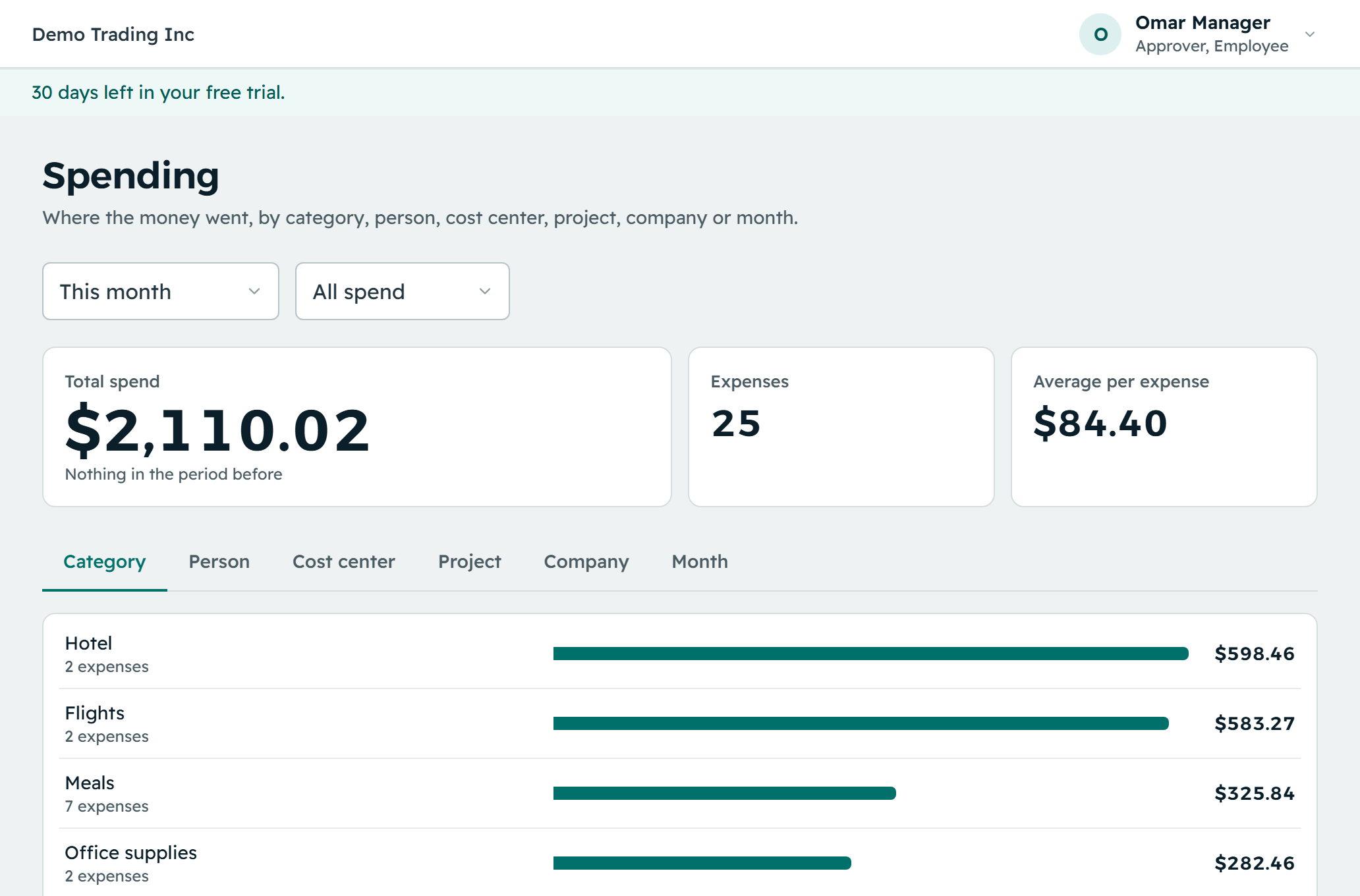
Six ways to understand employee spending
Choose the view that answers your question, from overall spending patterns to the expenses assigned to one project.
| View | What you can see |
|---|---|
| Category | How recorded expenses are spread across travel, meals, software, supplies and other categories |
| Person | The expense amounts recorded for each employee |
| Cost center | Which cost centers the expenses are allocated to |
| Project | Employee expenses assigned to each project or client engagement |
| Company | Recorded expenses grouped by legal entity |
| Month | How expense totals change from month to month |
Spot a change. Open the expenses behind it.
Compare matching periods
Pick a date range and compare it with the period of the same length immediately before it, so increases and decreases stand out before you look at the detail.
Choose approved or all submitted expenses
View approved expenses only, or include everything submitted, and keep the same basis when comparing totals. The totals are expenses recorded in Reimgo, not confirmation that reimbursements have been paid.
Go from a bar to individual expenses
Select a bar and the expenses list opens with that filter already applied. Review the entries behind the total and open their receipts.
Keep uncategorized expenses visible
Expenses without a category appear in their own group, so they are easy to find and review.
Give managers and finance the right view
Managers see expenses for their team. Finance, admins and auditors review company-wide records according to their permissions. The same dashboard serves a manager checking team expenses and finance reviewing spending across the business.
Export the detail for further analysis
Open the expenses behind a dashboard view and export them to CSV or Excel. Use the data to build your own charts, review project expenses or share the detail with your accountant.
Questions about the expense dashboard
What does the expense dashboard show?
Employee expenses grouped by category, person, cost center, project, company or month. You can compare periods and open the individual expenses behind each spending bar.
How does the previous-period comparison work?
Reimgo compares your chosen date range with the period of the same length before it. The comparison period ends the day before your range begins.
Can we compare spending against a budget?
No. The dashboard compares expenses with the previous period. Budgets and budget-versus-actual reporting are not part of the product today.
Can we add custom charts?
No, not today. The dashboard has predefined views. Export the expense data to CSV or Excel and build further charts in a spreadsheet or BI tool.
Does it include corporate card transactions?
No. Reimgo has no corporate card feeds. The dashboard shows the employee expense records held in Reimgo, not a feed of company card transactions.
Can managers see everyone's expenses?
No. Managers see their team's expenses. Company-wide access belongs to finance, admins and auditors, according to their permissions.
Get a clearer view of your team's expenses
Try Reimgo with your team's expense data. Explore spending by category or project, compare periods and open the records behind the totals.