
Project and cost center tracking
Track every expense by project and cost center
Assign employee expenses to the projects, cost centers and departments they support. Keep your accounting codes with each expense, split shared costs and see the spending behind every project. When finance prepares accounting exports or client invoices, the allocations are already recorded.
7-day free trial. No card needed. Cancel anytime.
Assign costs at the start. Keep them clear through review.
- Use the codes your business already works withAdd projects, cost centers and departments with codes that match your accounting records. Admins enter them one by one or import them from a spreadsheet.
- Make the right details mandatorySet a report type to require a project, a cost center or both before submission, so employees provide the allocation while preparing their claims.
- Allocate expenses as they are recordedEmployees pick the project or cost center when saving an expense. If a purchase supports more than one, they split the cost by amount or percentage.
- Carry allocations into reports and exportsFilter expenses and spending views by project or cost center, and export the details with their codes for accounting, project reviews or client billing preparation.
See where project costs belong
Split shared expenses accurately
Divide one expense across up to 20 allocation lines, each with its own project or cost center, while the receipt stays attached to the expense.
Send claims to the responsible approver
Include the cost center owner or department head in the approval workflow, so the person responsible reviews the expenses assigned to their area.
Identify expenses to bill back
Mark an expense as billable and filter for those expenses when preparing client invoices. Export the details for your invoicing process.
Close projects without losing their history
Deactivate a finished project to remove it from employees' selection lists. Existing expenses keep their allocation, so the record stays intact.
Review the expenses behind the totals
See spending by project or cost center, then open the individual expenses that make up the total when discussing project costs.
Enable the fields your team needs
Admins turn on project and cost center tracking when it is needed, so expense entry stays focused on what matters to your business.
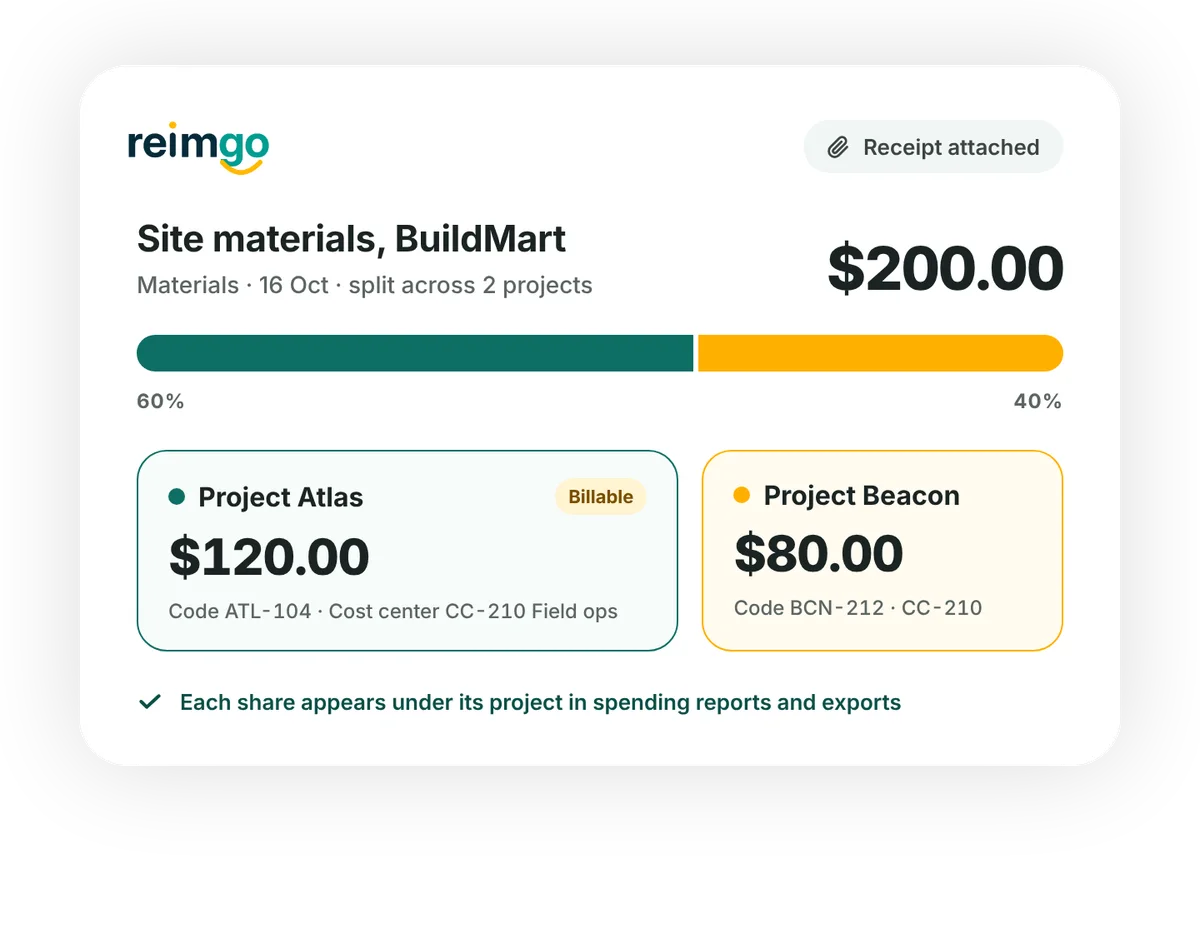
One shared purchase, two project allocations
A consultant buys materials costing $200 for two client projects and allocates 60% to Project Atlas and 40% to Project Beacon. Reimgo records $120 against Atlas and $80 against Beacon, with the receipt attached to the expense, and each allocation appears under its project in the spending reports.
Finance uses the coded expense details when reviewing project costs and preparing the supporting information for client invoices.
Questions about project and cost center tracking
What is project expense tracking?
Recording work purchases against the project they support. In Reimgo, employees assign expenses to projects, split shared costs and finance reviews spending by project.
What is the difference between a project and a cost center?
A project usually stands for a specific engagement or piece of work. A cost center groups spending under an area of responsibility in the business. Reimgo lets you use either or both.
Can we require a project or cost center before submission?
Yes. A report type can require a project, a cost center or both before the employee submits the report.
Can one expense be split across several projects?
Yes. Split an expense by amount or percentage across up to 20 allocation lines, each with its own project or cost center.
Can a project belong to a client?
Not as a separate client list. Name projects by client or engagement and use the project filters to review the related expenses.
Can we identify billable expenses?
Yes. Mark expenses as billable and filter for them when preparing client invoices. Reimgo records the expenses; you create the invoice in your invoicing system.
Can we close a completed project?
Yes. Deactivate the project and it stops appearing in selection lists. Expenses already assigned to it keep their allocation.
Can we import projects and cost centers?
Yes. An admin can add them one by one or import them from a spreadsheet.
Does Reimgo connect to our PSA or project management tool?
Not directly. Export the expense lines with their project codes to CSV or Excel and import them into your other system, subject to its import rules.
See what your next project is spending
Start your free trial, add a project and assign your first expense. Review its allocation, receipt and share of the project total in Reimgo.