
Expense policies
Set clear expense rules. Check claims before approval.
Turn your company's expense policy into checks employees can understand. Reimgo checks expenses when they are saved and again when a report is submitted, highlighting missing receipts, spending limits and other policy issues. Choose which rules require a correction and which allow an explanation, so approvers get the details they need to decide.
7-day free trial. No card needed. Cancel anytime.
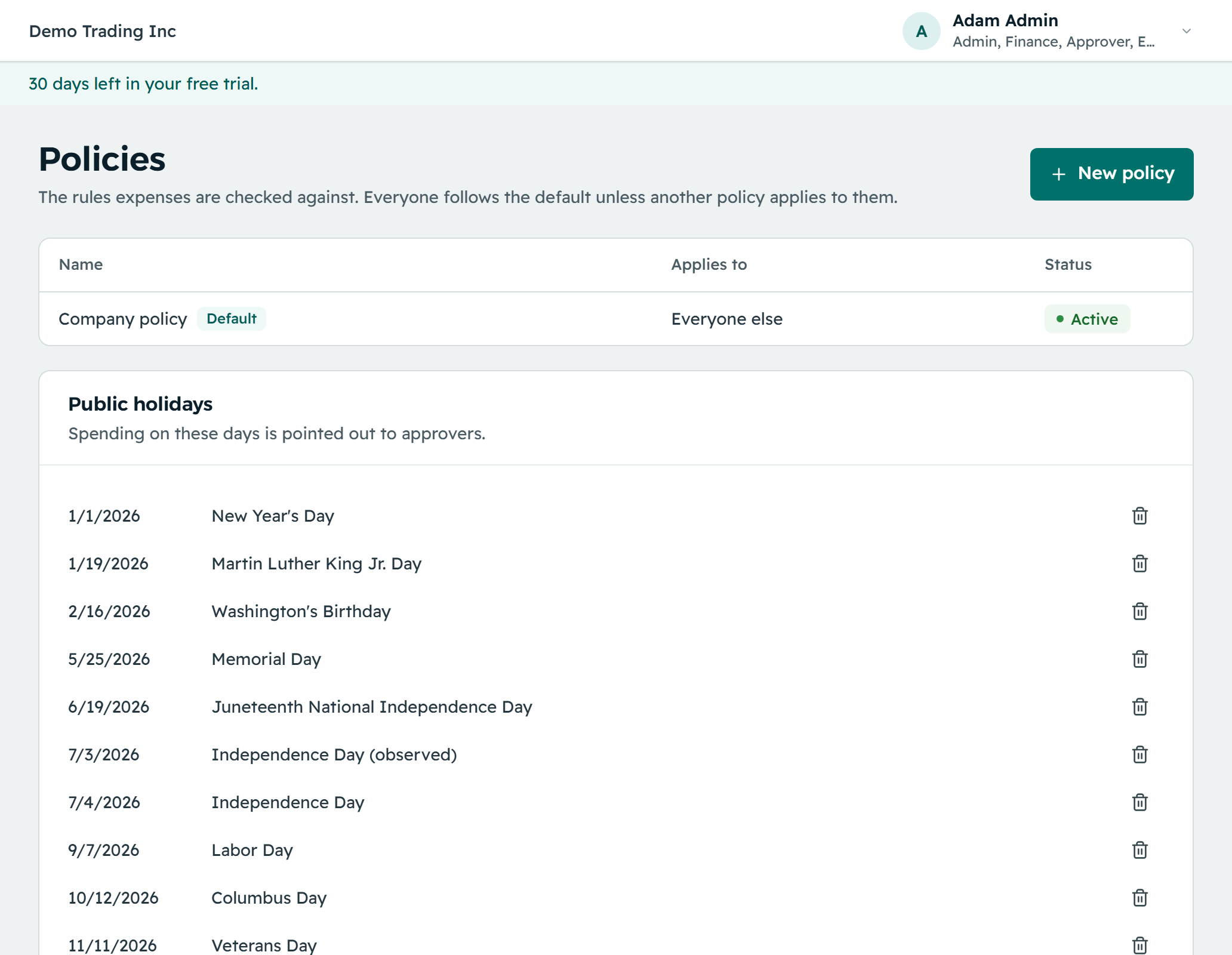
Put your expense policy into practice
Configure the rules that reflect your policy, each with a clear message that tells employees what to check or change.
| Rule | What you can check | Example |
|---|---|---|
| Spending limits | Category limits per expense, per day or per month. | Meals up to $75 a day. |
| Receipt requirements | Receipts above an amount you set, including a threshold per category. | Require a receipt for expenses above $25. |
| City or country limits | A per-expense amount limit for a location. | Hotel expenses in New York capped at $350 per expense. |
| Blocked categories | Expenses in categories your company does not reimburse. | Flag or block an alcohol expense. |
| Submission deadlines | The time between the expense date and report submission. | Submit expenses within 60 days. |
| Duplicate checks | Repeated receipt files, or matching invoice or expense details. | Flag a possible repeat claim for review. |
| Required descriptions | A note explaining expenses in a chosen category. | Ask who attended a client meal and its business purpose. |
Choose when to warn and when to block
Allow an explanation for review
A warning names the policy issue and asks the employee for a short reason. The warning and the explanation stay with the report, so the approver can weigh the circumstances.
Require a correction before submission
A blocking rule stops submission until the issue is resolved, for example until a required receipt is attached. Managers cannot bypass a block: the employee fixes the issue, or an admin changes the rule.
Apply the right policy to the right people
- Configure your company's rulesCreate a named policy and set its limits, requirements and warn-or-block behaviour. New companies start with a default policy that admins adjust to match their own.
- Assign policies where they belongApply a policy to a legal entity, department, cost center, grade or person. A default policy covers everyone without a more specific assignment.
- Check expenses before they reach an approverChecks run when an expense is saved and again when the report is submitted, so employees see the issues while preparing their claims.
- Give approvers the contextApprovers see the policy warning beside the expense, with the amount over the limit where it applies and the employee's explanation.
Keep policy checks consistent and understandable
Clear assignment priority
When several assignments could apply, the most specific policy wins, in this order: person, grade, cost center, department, legal entity, then the default policy.
Receipt requirements by category
Give a category its own receipt threshold where different kinds of spending need different supporting documents.
Messages in your own words
Write each rule's message in English and Arabic, explaining the requirement and what the employee should do in language your team uses.
Checks applied everywhere
Policy checks run centrally when expenses are saved and reports are submitted, so the same rules apply on the phone and on the desktop.
A meal over the limit, with the reason included
Your company sets a $75 daily meal limit as a warning. An employee records a client dinner that takes their meal spending above the limit. Reimgo highlights the issue and asks for an explanation. The employee adds the business reason and submits the report with the receipt attached.
The approver sees the expense, the policy warning and the explanation together. Had the same rule been set to block, the report could not have been submitted until the issue was resolved.
Questions about expense policies
What is expense policy software?
Software that checks employee claims against a company's spending and submission rules. Reimgo supports limits, receipt requirements, deadlines and other checks, each set to warn or to block submission.
When does Reimgo check an expense?
When the expense is saved and again when its report is submitted, so employees can fix issues before the report enters the approval workflow.
What is the difference between a warning and a block?
A warning asks for a short explanation that the approver can review. A block stops submission until the problem is resolved.
Can a policy apply to one department?
Yes. Assign the policy to the department. It takes priority over the entity and default policies unless a more specific assignment applies to the employee.
Can a manager override a blocking rule?
No. A blocking rule stops the report being submitted. The employee resolves the issue, or an admin changes the rule.
Does Reimgo support mileage and per diem rules?
Mileage, yes, as a rate list of its own: effective-dated rates per country (the IRS standard rate is included for US companies). Per diem allowances are not in the product today.
Can we require approval before an employee spends?
Not as a request step. A rule can flag or block recorded expenses above an amount, and a workflow can route higher-value reports to an extra approver, but these checks happen after the expense is incurred.
Is there a report of policy violations?
No separate register today. Policy warnings are visible on each report and on the approvals screen.
See your expense policy in action
Start your free trial, set a spending limit or receipt requirement and see how Reimgo guides employees before submission.